
In this guide

Notion
Work with your pages and tables from Apple Shortcuts. Connect Notion, then build an action using the fields in your own table.
What you can do #
Use Notion to capture a task, add a note to a page, find rows in a table, or change a row you already have. Shortcutify lets you pick the page and table by name. The table’s columns become fields in a form, so you can choose a status or a date without writing a request.
A row is one item in a Notion table, such as one task. A page can be a document or contain a table. Your page and column names will be different from the examples here.
Connect Notion #
A token is a credential Notion creates for you. Pasting it into Shortcutify gives the app permission to work with Notion. You do this in the app, not on this website.
- Open Personal access tokens in Notion’s Developer portal and choose New token.
- Name the token, select your workspace if asked, and give it the Notion API capability. Choose its expiration, then create and copy it.
- In Shortcutify, open Services → Notion. Paste it into Paste your token, then tap Connect Notion.
The token acts with your access in its workspace. Notion only shows its value when you create it. See Notion’s token guide for workspace restrictions and expiration.
Paste its secret into the same field. In Notion, open each page you want to use and choose ••• → Connections → your integration. This kind of connection only sees pages shared with it and cannot create a page in your Private pages.
Example: capture a task in a table #
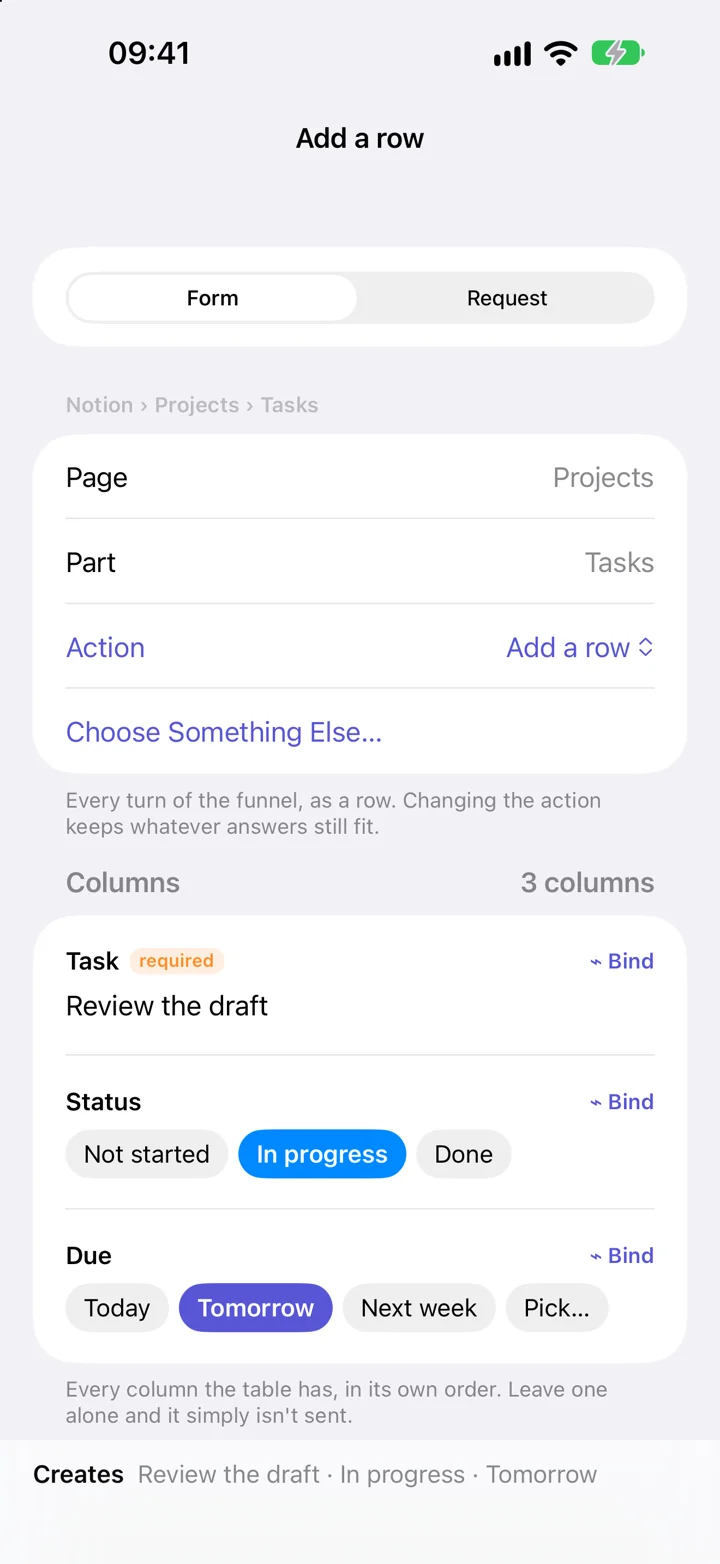
Start with a Notion table that has a title column. If it also has Status and Due columns, you can set those in the same form.
- Open Actions, tap +, and choose Notion.
- Choose A page I already have, then pick the page and the table on it. A recently used table may appear directly in the picker.
- Choose Add a row. Type a task in the title field. Fill in any other columns you want to set; optional fields can stay empty.
- To let your shortcut supply the task each time, tap Bind beside the title. Choose Shortcuts, then Param 1.
- Return to the action editor, give it a recognizable name such as “Add a task,” and tap Save.
In Apple Shortcuts, add Execute Action, select your saved action, and pass the task’s text through Param 1. The table and other saved values stay the same between runs.
Run Test sends the action to your connected Notion account. For this example, it adds a task to the selected table.
Choose the right task #
Find rows and choose how many come back
Choose your page and table, then Find rows. Choose a table view or All rows. Add conditions by selecting the column, what to compare, and the value. A selected view’s filter and sorting are copied when you choose it; changes to that Notion view later are not automatically copied again. Use How many to choose Just the first one, Up to 25, or Every one. The answer is a list of matching rows.
Change or bin a row
Choose Change a row or Bin a row for the table and select the row to work with. A change form lets you set the columns you want to update; use its clear control when you want to remove a value. In a sequence, a change or bin step after Find rows can take the first row it found. Review the search and its ordering so that first row is the one you intend. Bin a row moves it to Notion’s trash.
Create a page or add content
Choose A new page to make a page inside another page or in your Private pages. Private-page creation requires a personal access token. To add content to an existing page, start with A page I already have and choose Add to the page. The app offers the kinds of content it supports. Set the content in its form, then bind any values you want your shortcut to supply.
Work with to-dos and blocks
On an existing page, choose a to-do to tick it, or Add a to-do to create one. A block is a piece of content such as a paragraph or heading. When selecting page content, the app offers the read, change, delete, or restore tasks available for that kind of block. A tick or edit changes the selected content; a read only returns its value.
When the table is a form
For a table recognized as a form, the app uses Submit a response and Read the responses instead of Add a row and Find rows. A response is still a row in the underlying table. The form’s questions supply the field controls.
Switch between Form and Request
Form provides controls for the chosen task. Request shows the same step’s named parameters. Changing either view changes that one saved step; it does not create another action. Use Request for an API input that the friendly form does not expose.
If something does not work #
My page or table is missing
Check that the token belongs to the right workspace. If you use an internal integration, share the page through Notion’s Connections menu. A personal token only reaches pages your account can access.
Notion says it cannot find the page
With an internal integration, a missing page connection can produce this message even when the page exists. Connect that page to the integration, then try again.
Which fields have to be filled in?
The form marks required fields. Optional fields left empty when adding a row are not sent. When changing a row, leaving a field alone and explicitly clearing it are different choices.
Can I see the underlying request?
Open the step and choose Request. The Form and Request views edit the same step. Every Notion endpoint in the action picker opens the direct request editor.
All Notion actions #
These are the actions available in the app’s request picker. Open one for its inputs, returned fields, and permissions.
Create a Page
Add a page to a database — a task, a note, a bookmark.
Query a Database
Get rows from a database, filtered and sorted.
Search
Find a page or database by title.
Create a Document
Create a page inside another page, with Markdown content.
Create a Top-Level Document
Create a new private page at the top of the workspace.
Get a Page
A page's properties, title and URL.
Read a Document
The blocks making up a page's content.
Tick or Untick a To-Do
Check off a to-do block without touching its text.
Delete a Block
Move a block to the trash.
Rename or Trash a Page
Change a page's title, or move it to the trash.
Change a Row
Change some of a row's columns and leave the rest alone.
Move to Trash
Send a page or a row to Notion's trash.
Read a Page
A whole page as Markdown, in one request.
Add Markdown
Add anything — headings, to-dos, tables, callouts — written as Markdown, anywhere on a page.
Upload a File
Put a photo, video, PDF or any file from the phone on a page.
Find and Replace on a Page
Change text on a page by quoting it — Notion's own Markdown edit.
Set a Field
Change the value in a “Label: value” line and keep the label.
Get a Table's Columns
Every column of a table, with its type and options.
Get a Database
A database's title and the tables inside it.
List Views
The saved views of a database — All Tasks, By Status, Currently reading.
Get a View
One view's name, type, table, filter and sort order.
Who Am I
The connection's own name and workspace.
Add a Paragraph
Add a paragraph to a page — at the top, the bottom, or after a block.
Add a Heading 1
Add a heading 1 to a page — at the top, the bottom, or after a block.
Add a Heading 2
Add a heading 2 to a page — at the top, the bottom, or after a block.
Add a Heading 3
Add a heading 3 to a page — at the top, the bottom, or after a block.
Add a Heading 4
Add a heading 4 to a page — at the top, the bottom, or after a block.
Add a Quote
Add a quote to a page — at the top, the bottom, or after a block.
Add a Callout
Add a callout to a page — at the top, the bottom, or after a block.
Add a Toggle
Add a toggle to a page — at the top, the bottom, or after a block.
Add a Bullet
Add a bullet to a page — at the top, the bottom, or after a block.
Add a Numbered item
Add a numbered item to a page — at the top, the bottom, or after a block.
Add a To-do
Add a to-do to a page — at the top, the bottom, or after a block.
Add an Image
Add an image to a page — at the top, the bottom, or after a block.
Add a Video
Add a video to a page — at the top, the bottom, or after a block.
Add an Audio
Add an audio to a page — at the top, the bottom, or after a block.
Add a PDF
Add a pdf to a page — at the top, the bottom, or after a block.
Add a File
Add a file to a page — at the top, the bottom, or after a block.
Add a Bookmark
Add a bookmark to a page — at the top, the bottom, or after a block.
Add an Embed
Add an embed to a page — at the top, the bottom, or after a block.
Add a Divider
Add a divider to a page — at the top, the bottom, or after a block.
Add a Table of contents
Add a table of contents to a page — at the top, the bottom, or after a block.
Add a Breadcrumb
Add a breadcrumb to a page — at the top, the bottom, or after a block.
Add Columns
Add columns to a page — at the top, the bottom, or after a block.
Add a Simple table
Add a simple table to a page — at the top, the bottom, or after a block.
Add a Table row
Add a table row to a page — at the top, the bottom, or after a block.
Add Tabs
Add tabs to a page — at the top, the bottom, or after a block.
Add a Synced block
Add a synced block to a page — at the top, the bottom, or after a block.
Add a Copy of a synced block
Add a copy of a synced block to a page — at the top, the bottom, or after a block.
Add a Code
Add a code to a page — at the top, the bottom, or after a block.
Add an Equation
Add an equation to a page — at the top, the bottom, or after a block.
Change a Paragraph
Change a paragraph in place — only what you fill in.
Change a Heading 1
Change a heading 1 in place — only what you fill in.
Change a Heading 2
Change a heading 2 in place — only what you fill in.
Change a Heading 3
Change a heading 3 in place — only what you fill in.
Change a Heading 4
Change a heading 4 in place — only what you fill in.
Change a Quote
Change a quote in place — only what you fill in.
Change a Callout
Change a callout in place — only what you fill in.
Change a Toggle
Change a toggle in place — only what you fill in.
Change a Bullet
Change a bullet in place — only what you fill in.
Change a Numbered item
Change a numbered item in place — only what you fill in.
Change a To-do
Change a to-do in place — only what you fill in.
Change an Image
Change an image in place — only what you fill in.
Change a Video
Change a video in place — only what you fill in.
Change an Audio
Change an audio in place — only what you fill in.
Change a PDF
Change a pdf in place — only what you fill in.
Change a File
Change a file in place — only what you fill in.
Change a Bookmark
Change a bookmark in place — only what you fill in.
Change an Embed
Change an embed in place — only what you fill in.
Change a Table of contents
Change a table of contents in place — only what you fill in.
Change a Simple table
Change a simple table in place — only what you fill in.
Change a Table row
Change a table row in place — only what you fill in.
Change a Code
Change a code in place — only what you fill in.
Change an Equation
Change an equation in place — only what you fill in.
Change a Column
Change a column in place — only what you fill in.
Read a Block
One block: its type, its text and everything particular to it.
Restore a Block
Bring a deleted block back out of the trash.
Create a Table
A new database on a page, with the columns you give it.
Service setup references #
The service controls its account requirements and permissions. These references explain its setup in more detail.