
In this guide

Airtable
Add, find, and update records from a shortcut. Pick a base and table, then fill in a form built from its fields.
What you can do #
A base is an Airtable workspace for related tables. A record is one row in a table. Shortcutify lets you choose your base and table by name, then add a record, find records, change a record, or delete one.
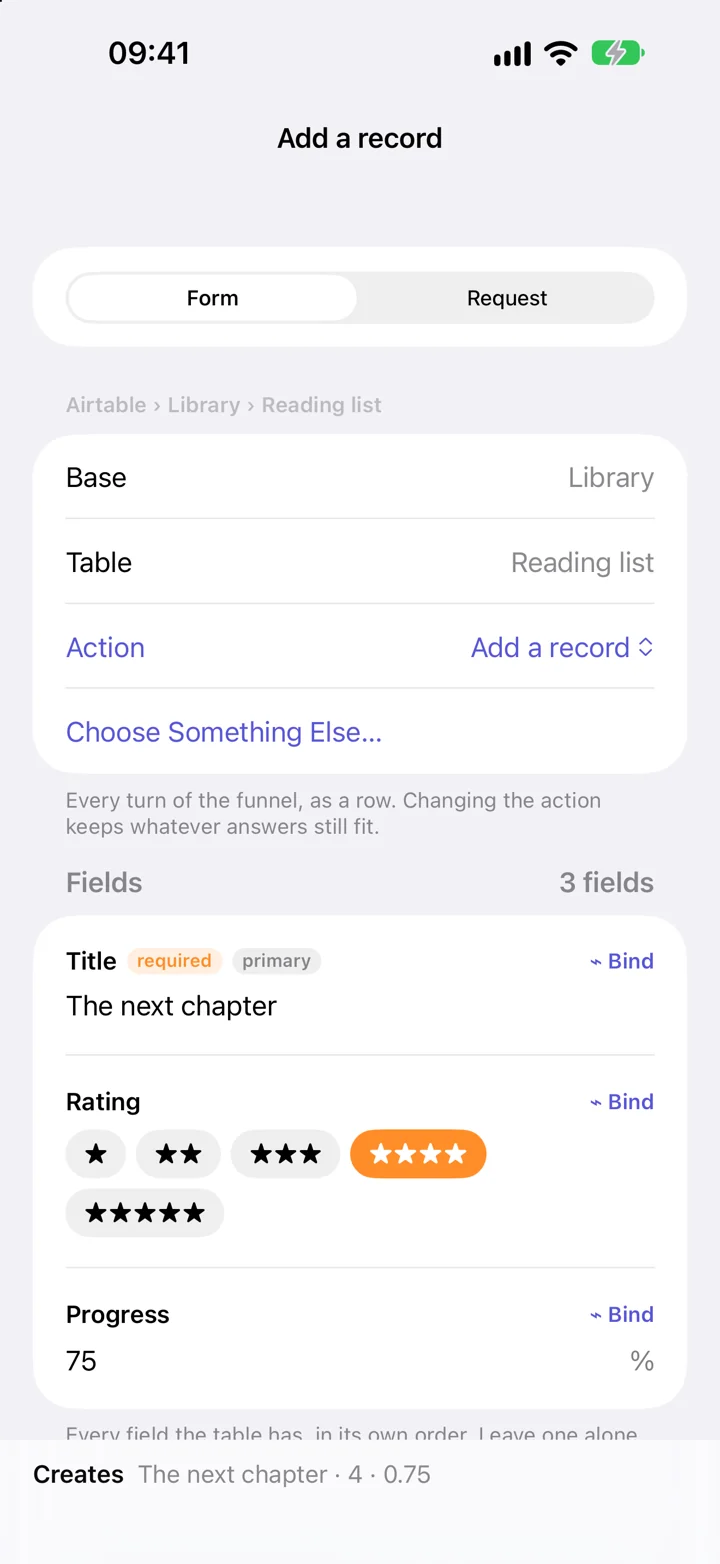
The form follows your table’s field types. For example, a rating has stars and a percentage takes a number. Read-only fields cannot be written. You can also choose an existing Airtable view when finding records.
Connect Airtable #
Create a personal access token in Airtable. Its scopes say what it can do; its Access list says which bases it can reach. Both matter.
- Open Airtable’s token page and choose Create token. Give it a name.
- Add schema.bases:read so Shortcutify can show your bases, tables, and field controls. Add data.records:read for reading records and data.records:write for creating, changing, or deleting them.
- Under Access, add the bases you want to use. Create the token and copy it.
- In Shortcutify, open Services → Airtable, paste it into Paste your token, and tap Connect Airtable.
Your own Airtable permissions still apply. A token does not let you edit a base you can only read. Airtable’s token instructions explain how to edit scopes and base access.
Example: add a book to a reading list #
Use an Airtable table with a title field. Rating and progress fields are optional; this example uses them to show how the form changes with your table.
- In Actions, tap + and choose Airtable.
- Choose A base I already have. Pick your base, then your reading-list table.
- Choose the action that adds a record. Enter the book’s title and any other fields you want to save.
- If the title should come from your shortcut, tap Bind beside it, choose Shortcuts, and select Param 1.
- Return to the action editor, name the action, and tap Save. Add it to a shortcut using Execute Action.
The screenshot uses an example table. Shortcutify reads your actual table to decide which fields and choices to show. Testing this action creates a real record.
Choose the right task #
Find records without writing a formula
Choose the base, table, and Find records. Start with an existing view or All records. Add conditions by picking a field, what to compare, and a value. Every condition must hold. A selected view’s own filter and order are applied by Airtable. Use How many to return Just the first one, Up to 25, or Every one.
Read, change, or delete one record
Choose the task and select the existing record. Read a record returns its values. Change a record updates the fields you set, with an explicit clear option for removing a value. Delete a record removes it. Following Find records in a sequence, these tasks can use the first record found; check the filter and order before running a write.
Add or change a record
Use this task when a run should update a matching record or create one if it does not exist. Choose the fields that identify a match in Match on, then fill in the values to write. Match fields determine which existing record the service looks for. You can select up to three together. If more than one record matches, nothing is changed and the run stops. Choose values that identify your intended record. This task can create or change real data.
Read-only fields and form responses
Computed fields, including formulas and rollups, can be returned but cannot be written by the form. A table recognized as a form uses words such as Submit a response and Read the responses. These tasks work with the records behind that form.
Use the direct request editor
Every Airtable endpoint opens the API action list. Form and Request, when offered for a step, edit the same saved request. The action references below explain the named inputs, including the structured fields accepted by the direct editor.
If something does not work #
My base is missing
Edit your token in Airtable and add the base under Access. Check schema.bases:read is enabled so the app can read its structure.
I can read a table but cannot add a record
The token needs data.records:write and your account must be allowed to edit the base. Table or field permissions and synced tables can also prevent a write.
What happens to an empty field?
For a new record, an empty optional field is left out. When updating a record, use the form’s explicit clear option to remove a value rather than leaving it untouched.
Do I have to write a formula?
The dedicated Find records form builds its conditions from field controls. Every Airtable endpoint opens the direct request editor if you want to supply the API parameters yourself.
All Airtable actions #
These are the actions available in the app’s request picker. Open one for its inputs, returned fields, and permissions.
Who Am I
The account the token belongs to.
List Bases
Every base the token can reach.
Create a Base
A new base in a workspace, with its tables and their fields.
Get a Base's Tables
Every table in a base, with its fields, their options, and its views.
List Records
Records from a table — through a view, filtered and sorted.
Get a Record
One record, by its ID.
Create a Record
Add a record to a table.
Add or Update a Record
Change the record whose fields match, or add one when none does.
Update a Record
Change some of a record's fields and leave the rest alone.
Delete a Record
Delete a record for good.
Service setup references #
The service controls its account requirements and permissions. These references explain its setup in more detail.